Shortcodes are a powerful way to add dynamic content to your WordPress site without writing complex code in every template. If you’re building a custom theme or working with a child theme, shortcodes give you flexibility to insert reusable elements anywhere.
Step 1: Create a Shortcode Function in your theme function.php file
Create a PHP function that will return the output you want to display.
Use return instead of echo : return sends the output back to WordPress properly, while echo can break or misplace the shortcode output.
Syntax:

function function_name() {

    return 'value';

}
Note: Always use unique function name to avoid conflicts with themes or plugins
Example:

Step 2: Register the Shortcode
Register the shortcode using the add_shortcode() function. Registering the shortcode tells WordPress to connect the shortcode name with your PHP function.
Syntax:

add_shortcode('shortcode_name', 'function_name');
Note: After this step, WordPress recognizes [shortcode_name] as a valid shortcode. In the example we are creating shortcode named “phone”.
Example:
Step 3: Add the Shortcode to a Theme File
You can use the shortcode directly inside any theme file such as:
- header.php
- footer.php
- single.php
- page.php
Use do_shortcode() to run it in PHP files:
Syntax: <?php echo do_shortcode('[shortcode_name]'); ?>Example:

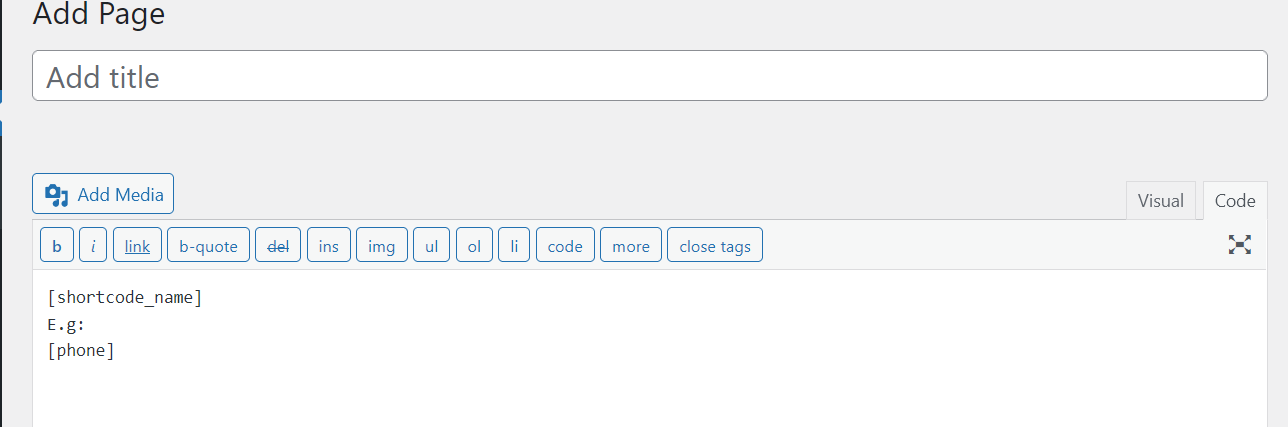
Step 4: Use the Shortcode in Pages or Posts
You can also use the shortcode inside pages or posts without any PHP.
Syntax: [shortcode_name]
Example: